


Blue Yonder Workforce
4.53.20K Reviews
App Specs
- Version
- 2026.1.0
- Updated On
- License
- Free
- Downloads
- 500,000+
- Developer
- Blue Yonder Inc.
- Categories
- Business
- Platform
- Android, iOS
Screenshots
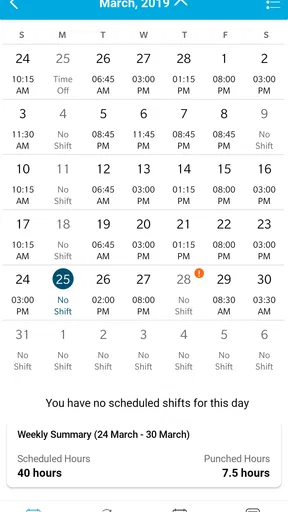
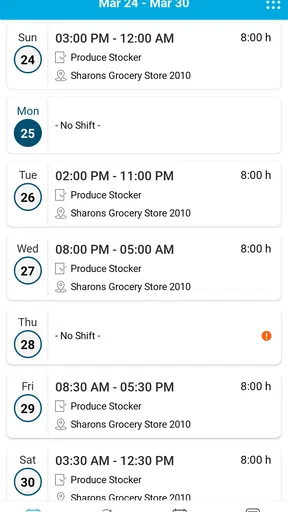
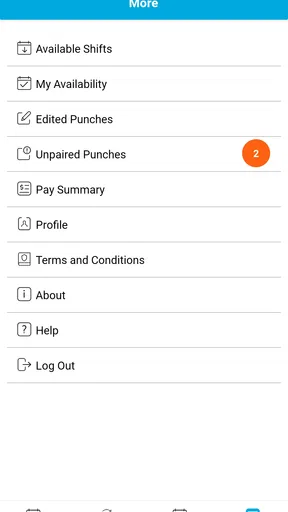
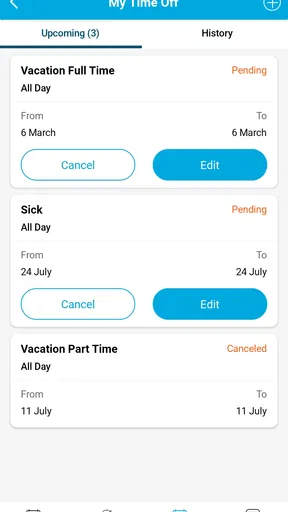
 Analysis by AppCompare
For employees whose working day depends on changing shifts, Blue Yonder Workforce is the kind of business app that can become genuinely useful once it is connected to the right workplace account. Developed by Blue Yonder Inc., it focuses on giving staff access to schedules and time-off requests rather than trying to be a complete office suite. I see that narrow purpose as both its main strength and its main limitation: it can make routine workforce tasks easier, but only when an employer has configured the service and the employee has the correct login details.
This is a free app in the Business category, rated for Everyone, and it runs on Android devices using OS version 10 or later. Its current version is 2026.1.0, and it has been available since March 29, 2019. The app has built a sizeable audience, with more than 500 thousand installs, an average rating of 4.5 from about 46 thousand ratings, and roughly 3.2 thousand written reviews. Those numbers suggest that many people find it dependable for its intended workplace role, although they should not be confused with a promise that it will work independently for every employee.
Where people usually get stuck
The first thing I would clarify to a friend is that this is not a general calendar app where anyone can create an account and start planning shifts. It is a workforce tool tied to an organization’s Blue Yonder setup. In practice, that means the most important part of the experience may happen before the app is opened: your employer must use the relevant service, and you need the sign-in route and account information supplied by that employer.
That dependency explains many of the complaints people commonly have with workplace apps. A user may install the correct application but still be unable to sign in because the organization uses a particular account address, authentication method, or internal access arrangement. Reinstalling the app repeatedly will not fix an account that has not been activated or a workplace that has not granted access. My practical advice is to treat the first login as an employer-access issue as much as an app issue.
Another point of confusion is the difference between seeing a schedule and changing it. The app is designed to provide access to scheduling information and time-off requests, but that does not mean every employee can edit shifts, trade hours, or approve requests. Those actions depend on workplace rules and the permissions assigned by management. If a button or option is missing, it may reflect the way your employer has configured the system rather than a broken installation.
I also would not expect it to replace every communication channel at work. A schedule screen can show planned hours, while a manager may still use another method for urgent announcements, shift changes, or explanations about attendance. The safest habit is to use the app as the formal place to check the schedule and submit available requests, while following your workplace’s separate instructions for last-minute changes.
What to check before blaming the app
Before troubleshooting anything complicated, I would confirm that the device meets the minimum operating-system requirement and that the installed application is the current release. An outdated phone system can create compatibility problems, while an old app build can behave differently from the version supported by the organization. I would also check that the phone has a reliable connection and that the device’s date and time are set correctly, since sign-in systems can be sensitive to inaccurate clock settings.
Worth Reading Before You Choose

EA SPORTS FC Mobile 26 Is a Bigger Football Game, but It Takes Time

Flipboard Shows What News Apps Must Do Beyond the Feed

Switching to Android Auto Means Rethinking Your Driving Routine

Google Calendar Makes a Crowded Week Easier to Manage

Ludo King Makes the Most of the Minutes Between Plans

Baby Panda World Brings Quick Play to Modern Phones, but Its Game Library Feels Busy
The next check is the account itself. I would carefully compare the username, password, and any organization-specific sign-in details with the instructions from the employer. Small differences matter: a personal email address may not be the same as a work identity, and an employee number may need to be entered in a particular format. I would avoid guessing repeatedly, because too many failed attempts can create a separate account-lockout problem that the app cannot resolve.
If the workplace uses an additional verification step, I would complete that process exactly as instructed rather than assuming the app is frozen. Keep the sign-in screen open long enough for the verification stage to finish, and check whether a notification or code is being sent through the channel your employer specified. If the code never arrives, the useful next step is to verify the registered contact method with the workplace support team, not to create random new accounts.
It is also worth checking whether access has actually been activated for a new employee, a returning employee, or someone who recently changed roles. A person can have a valid work identity and still lack access to the scheduling service. In that situation, the app may install normally and open correctly while showing no useful information. That is a setup gap, not evidence that the schedule itself has disappeared.
A sensible setup routine
My preferred setup process is simple. I would install the app on a supported device, connect through a stable network, and sign in using only the details provided by the employer. After entering the app, I would check whether the displayed name or workplace context is correct before relying on any schedule information. If the account appears to belong to the wrong organization or shows incomplete details, I would stop there and ask the workplace administrator to verify the account.
Once access works, I would review the schedule for a future working period rather than looking only at the next shift. That gives you a better chance of noticing whether the schedule is populated properly, whether recurring days appear as expected, and whether a recent change has reached the system. I would compare the first visible entries with the schedule information already communicated by the employer, especially after a new hire, transfer, or change in availability.
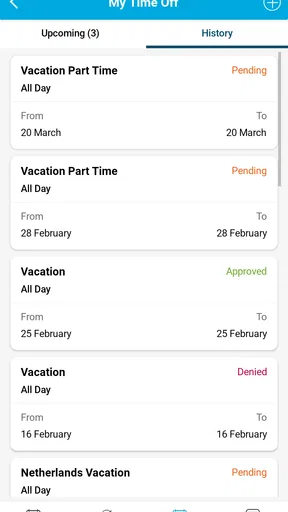
For time-off requests, I would read the entire request screen before submitting anything. Check the selected dates, the type of request, and any notes or confirmation shown before final submission. A request that appears on screen is not necessarily approved. I would look for a clear status afterward and keep following the employer’s normal process until the request is accepted. This distinction is important because the app can be a place to submit a request without being the final decision-maker.
One useful habit is to capture the exact wording of an error message before closing the app. A vague report such as “it does not work” gives support very little to investigate. The screen message, the approximate time of the attempt, the device system version, and whether the problem affects sign-in, schedule loading, or request submission can quickly separate an account problem from a temporary connection issue.
Recovering a disrupted workflow
When a schedule fails to load, I would first distinguish between a blank schedule and a visible error. A blank view can mean that the account has no published schedule for the selected period, that the wrong date range is open, or that the organization has not yet released the information. An explicit connection or authentication message points toward a different remedy. This small distinction prevents people from assuming that every empty screen means lost data.
I would close and reopen the app, confirm the network, and try again after checking that the correct account is active. If the issue affects only one screen, I would avoid making broad changes to the phone immediately. For example, if the schedule opens but a time-off request will not submit, the problem may relate to the request details, the selected dates, or workplace rules rather than general access.
For a failed request, I would write down the dates and request type before trying again, then confirm that the app has not already recorded the first attempt. Submitting the same request repeatedly can create confusion for both the employee and the manager. If the status is unclear, I would ask the workplace contact to check the request in the organization’s administrative system instead of assuming that a second submission is safer.
Sign-in loops deserve a slightly different approach. I would stop entering credentials, close the app, and verify whether the account works through the employer’s normal access instructions, if such an alternative is officially provided. If the account fails everywhere, the likely issue is credentials, activation, or access policy. If other access works but the mobile app does not, then documenting the device and app behavior becomes more useful for support.
I would be cautious about clearing app data or uninstalling the application as a first response. Those actions may remove locally stored sign-in information and make the next login more difficult, especially if you need workplace instructions or an additional verification step. They can be reasonable later when support recommends them, but they are not a substitute for confirming the account and organization settings.
When the app is not the cause
Workforce information can change upstream. A manager may need to publish a revised schedule, correct an employee record, approve a request, or update a role before the mobile view reflects the change. If colleagues see the same missing schedule or delayed update, that is a strong sign that the issue belongs to the workplace system or publishing process rather than your phone.
The same applies to a request that remains pending. The app can display the request and its status, but approval may depend on a manager, staffing rules, or an internal workflow. I would not interpret a pending status as a technical failure unless the employer’s process says it should have changed already. Asking the appropriate manager to confirm the status is more productive than repeatedly refreshing the screen.
Device conditions can also create misleading symptoms. Limited storage, unstable Wi-Fi, aggressive battery restrictions, or a weak mobile signal can interrupt loading even when the service itself is available. I would test with a dependable connection, make sure the phone has room to operate normally, and avoid switching networks repeatedly during sign-in. These are ordinary checks, but they often reveal whether the problem follows the account or stays with one device.
There is also a human workflow issue: employees sometimes look at the wrong day, week, location, or employment assignment. A schedule can appear missing when the view is simply positioned on a period that has not been published. I would check the date controls carefully and compare the selected context with the location and role assigned by the employer.
Compared with a personal calendar, this app has the advantage of being connected to the workplace schedule and time-off process rather than relying on manual copying. A calendar app is better for combining work with appointments, family commitments, and personal reminders, but it may become outdated when a manager changes a shift. Conversely, a messaging app may be faster for urgent conversation, yet it is a poor long-term record for dates and formal requests. I would use each tool for its proper job instead of expecting this app to replace both.
Who will benefit most
This app makes the most sense for hourly employees, shift workers, and anyone whose working pattern changes often and whose employer has adopted Blue Yonder Workforce. It is especially useful when you need a single place to check an upcoming schedule or send a time-off request without relying on printed notices or manually maintained spreadsheets.
It can also help employees who work across changing days or locations, provided the organization keeps its records current. The practical benefit is not flashy: fewer moments spent searching through messages, asking coworkers which shift is current, or wondering whether a request was submitted. That value depends heavily on the employer maintaining the underlying information accurately.
I would be less enthusiastic about it for someone who wants a standalone planner, a personal budgeting tool, a team chat service, or a universal shift-trading marketplace. It is not the right choice for a person whose employer does not use the Blue Yonder workforce environment, because installing it alone does not create a schedule or workplace account. For independent workers, a flexible calendar or scheduling tool may be a better fit.
Privacy and shared-device habits also deserve attention. On a personal phone, I would use the device’s normal security protections and avoid leaving a workplace account open where other people can access it. On a shared device, I would follow the employer’s instructions carefully and sign out when required. The app’s Everyone content rating describes its general suitability, not the sensitivity of the work information an employee may see after signing in.
My practical verdict
After looking at how this app fits into a real working routine, I see it as a focused access point rather than a complete workforce-management solution for the employee. Its best qualities are straightforward: it is free, it is aimed at a clear business task, and it can reduce dependence on paper schedules or scattered messages when the employer’s setup is working properly.
The trade-off is equally clear. The mobile experience cannot fix an inactive account, an unpublished schedule, an incorrect employee record, or a manager’s delayed approval. That means the app may feel unreliable during exactly the moments when a worker is under pressure, even though the underlying problem sits elsewhere. The most effective users will understand that boundary and know when to switch from phone troubleshooting to workplace support.
My recommendation is to install it if your employer specifically uses Blue Yonder Workforce and has given you the correct access instructions. Start by confirming the account, checking the displayed schedule against a known shift, and learning where a submitted time-off request shows its status. If something goes wrong, identify whether the failure concerns login, loading, dates, or approval before taking action. That habit saves time and avoids duplicate requests.
For the right workplace, the app is most valuable when it becomes a dependable daily reference, not when it is treated as a cure for every scheduling problem. I would recommend it to employees who need employer-connected schedule and time-off access, while steering people without that workplace connection toward a regular calendar or another scheduling option. Used within its intended boundaries, it is a practical business app with a focused purpose and a manageable learning curve.
Pros
- Clear shift details help employees plan their workday.
- Useful access to schedules from anywhere with an internet connection.
- Shift updates can reduce confusion around last-minute changes.
- Supports workforce coordination across multiple locations.
- Mobile access is convenient for employees away from a desktop.
Cons
- Some features may depend on employer configuration and permissions.
- The interface can feel complex for first-time users.
- Schedule changes may not appear immediately in every setup.
- Requires reliable connectivity for the best experience.
- Notifications may be limited by device or company settings.
FAQs for Blue Yonder Workforce
What is Blue Yonder Workforce used for?
Blue Yonder Workforce is a workforce-management app designed to help employees view schedules, shifts, time-off information, tasks, and workplace communications from a mobile device. Depending on how an employer has configured the platform, users may also be able to clock in or out, swap shifts, confirm availability, review attendance details, and receive notifications about schedule changes.
Can anyone download and use Blue Yonder Workforce?
Although the app may be available for download on Android and iOS, it is generally intended for employees whose organizations use Blue Yonder Workforce Management. You normally need an employer-provided account, company credentials, or an organization-specific sign-in method. Downloading the app alone does not guarantee access, so confirm that your employer supports the service before installing it.
How do I sign in to Blue Yonder Workforce?
The sign-in process depends on your employer’s configuration. Some organizations use a company code, username and password, while others require single sign-on, a corporate identity provider, or additional verification. If you cannot log in, check that you are using the correct organization details and contact your manager or workplace IT support rather than creating an unrelated personal account.
Does Blue Yonder Workforce require location, notifications, or other permissions?
The permissions requested can vary according to the features enabled by your employer and the version of the app. Notifications may be useful for schedule updates, while location access could be required for certain mobile timekeeping or workplace verification functions. Review each permission carefully, because disabling one may limit specific features without necessarily preventing the entire app from opening.
Is Blue Yonder Workforce reliable for checking schedules and recording work time?
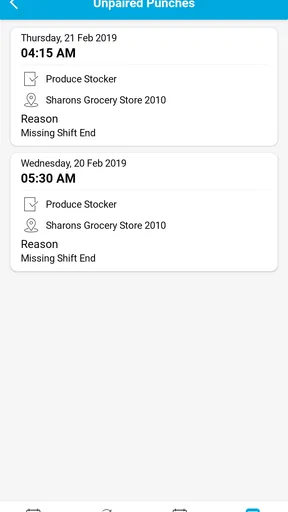
In normal conditions, the app can be a convenient way to review shifts and interact with workplace scheduling tools, but reliability may depend on your employer’s setup, network connection, device compatibility, and server availability. Always verify important schedule changes and time entries. If the app is unavailable or a punch appears incorrect, follow your workplace’s official reporting procedure promptly.


